
Card payments are live on Hajima.
Pick your credits. Get back to creating.
Explicit adult experience
This site contains explicit illustrated media and adult AI creation tools. Continue only if you are 18 or older and viewing adult content is legal where you live.
By entering, you confirm that you are at least 18 years old and that viewing adult content is legal in your location.
Crypto payment guide
Never used crypto before? Follow this guide from opening an account to seeing your Hajima order complete. The official Coinbase and NOWPayments screens were captured on 29 August 2026; controls may change after that date.
Kakao Pay, Samsung Pay, and supported cards open only from the Korean pricing page and settle only in Korean won. They do not use this crypto flow.
00
Prepare
Use a regulated exchange or wallet service that lets you add local money, buy crypto, and send it to an external address. Availability, identity checks, funding methods, assets, networks, and fees depend on your country and provider.
Account
Create the account on the provider's official app or website. Confirm your email or phone, complete identity verification if required, and turn on two-factor authentication before funding the account.
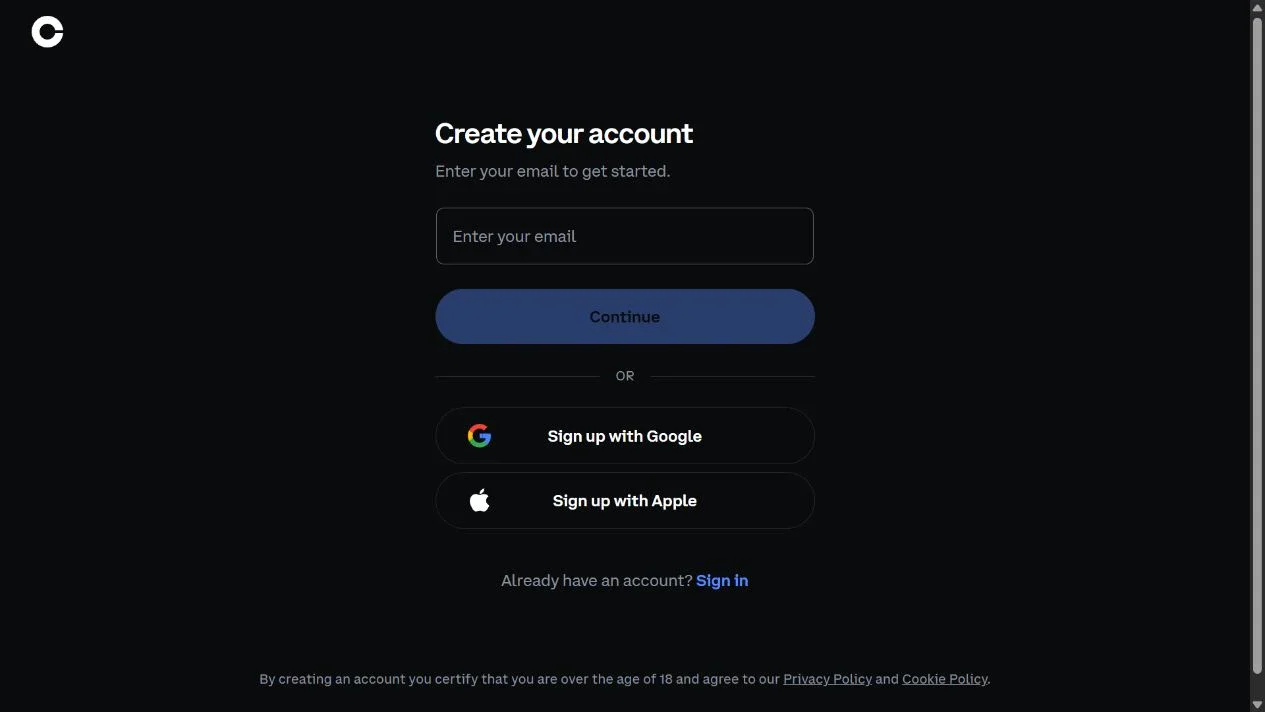
Enter an email address you control on the official domain.
Continue only after checking the browser address and provider name.
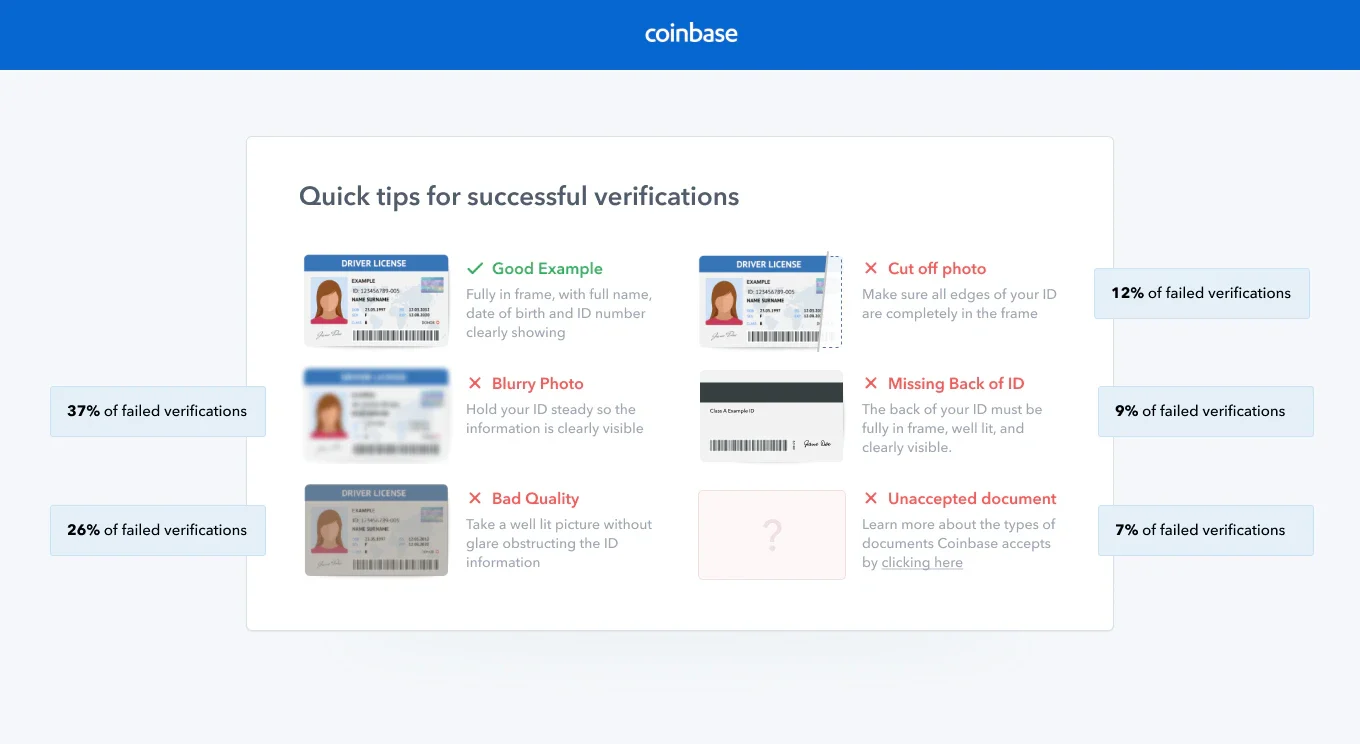
Keep the full document in frame with the required details visible.
Retake the photo if text is blurred or hard to read.
Do not crop any edge of the document.
Fund
Open the exchange's Add cash, Deposit, or Fund screen and choose a method available in your region. Review the provider's fee, processing time, and withdrawal hold before confirming.
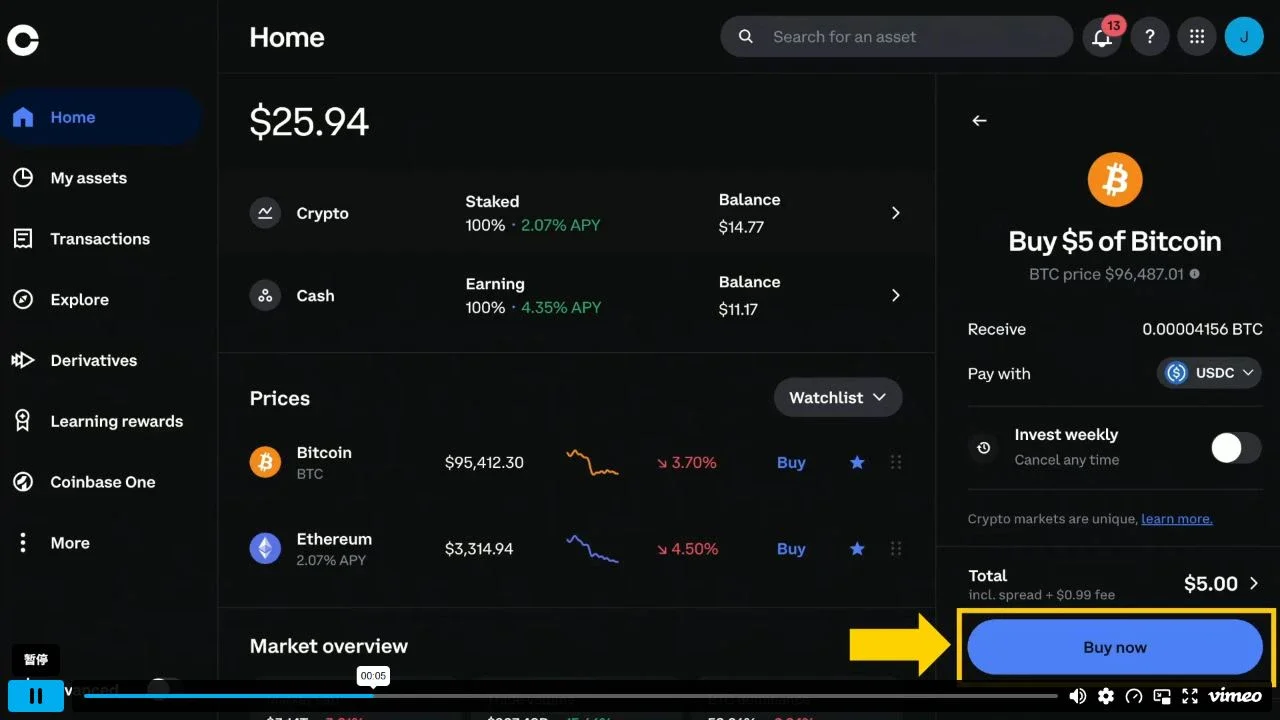
Confirm the asset and the amount you are buying.
Review which balance or funding method will be charged.
Read the total and fee before selecting Buy now.
Buy
On the exchange, choose Buy or Trade, select the same crypto asset you intend to use on the hosted payment page, enter your budget, and review the final amount and fee.
Official Coinbase video
This official desktop walkthrough shows where Coinbase presents the asset, funding balance, total, and Buy now action.
The balance, market price, and $5 purchase shown are Coinbase demonstration data. Buy only an asset supported by your current NOWPayments invoice and keep enough for fees.
Open the Coinbase buying guideInvoice
Return to Hajima Pricing, choose Crypto, and open the hosted payment page. Select an asset and network that your exchange can withdraw on. The invoice then shows the exact amount, destination address, any memo or tag, and its payment window.
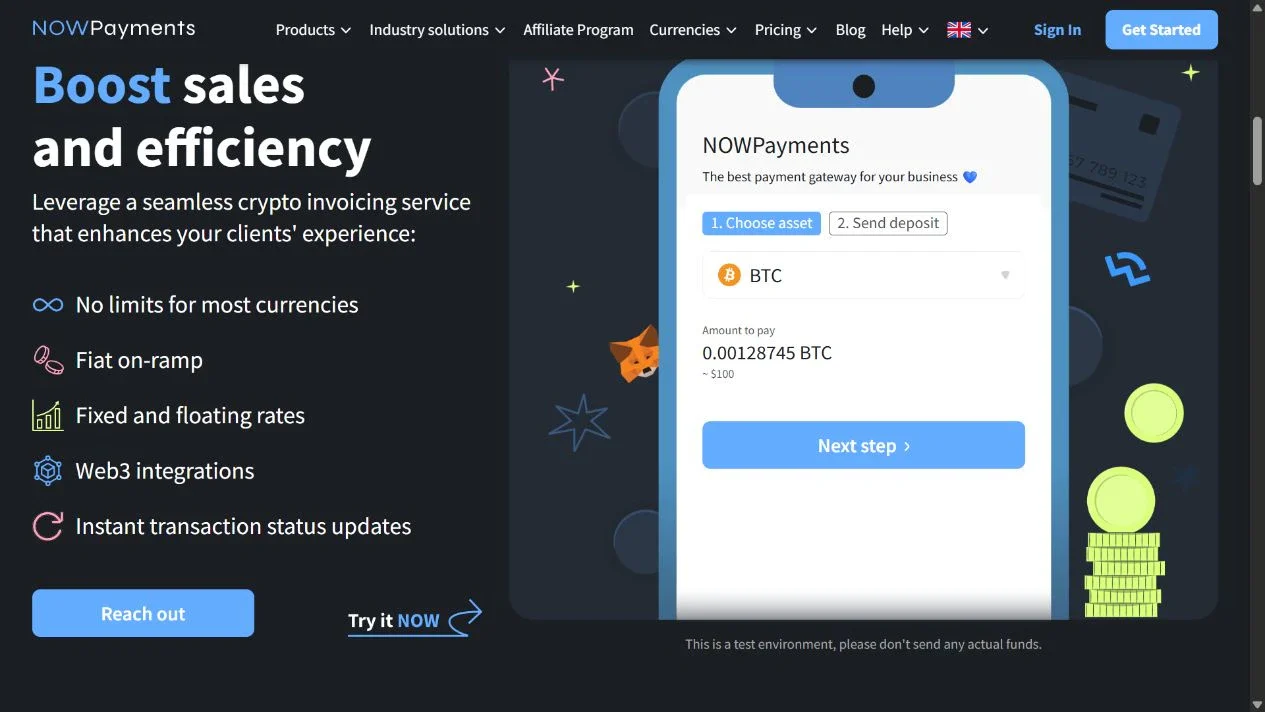
Choose an asset that your exchange can withdraw.
Use the exact crypto amount shown by your live invoice.
Continue to reveal the current deposit instructions and payment window.
Send
Open Send or Withdraw on the exchange. Paste the destination, select the exact same network, include the memo or tag when shown, and enter an amount that leaves at least the invoice amount for the recipient after the exchange's withdrawal fee.
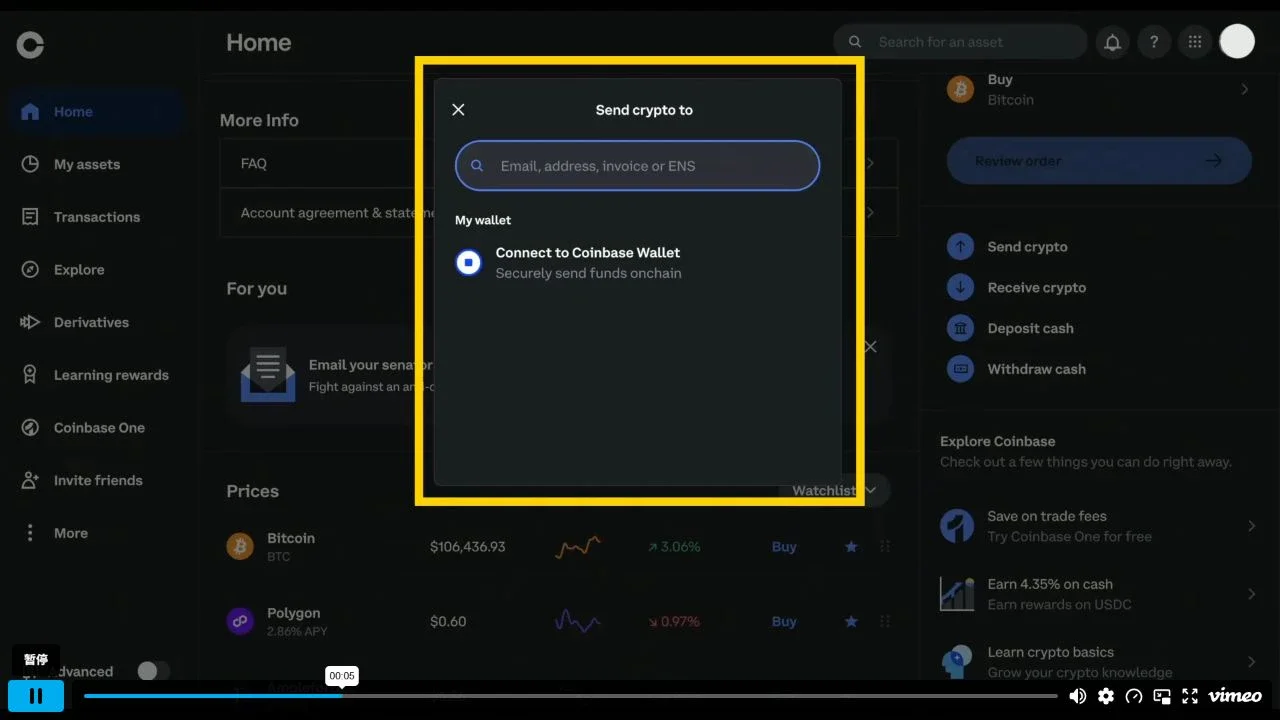
Paste only the destination from the current invoice.
Use the provider's Send crypto flow, not an internal transfer to another product.
Official Coinbase video
This official desktop walkthrough shows the Send crypto entry, recipient field, review flow, and exchange confirmation.
The destination and amount in the video are demonstration data. Copy the destination, asset, network, memo or tag, and exact amount only from your current NOWPayments invoice.
Open the Coinbase sending guideConfirm
Keep the Hajima order ID and result page. A payment can move through waiting, confirming, and processing before it finishes. Credits or pass time appear only after the provider callback and Hajima's server query agree.
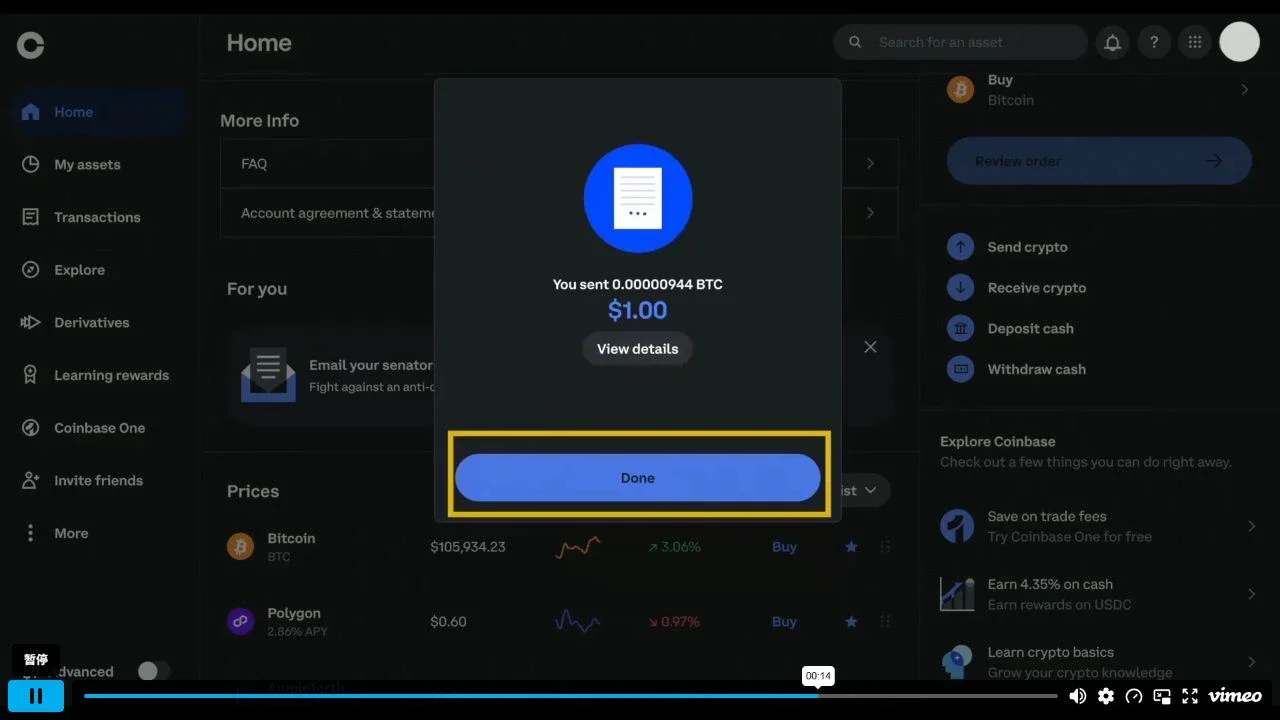
Check the sent crypto amount before closing the exchange screen.
The fiat value here is the exchange's own confirmation, not Hajima settlement.
After Done, return to Hajima and wait—do not send a duplicate payment.
Treat the invoice as one exact set of instructions. If one line differs, stop and correct it before sending.
!
Stop before sending whenever possible. Crypto transfers normally cannot be cancelled after broadcast.
Do not send. Return to the invoice and choose an option that your exchange supports. If already sent, keep the order ID and exchange withdrawal record for support.
Never resend to the old address.Some assets require both an address and a memo or destination tag. If the invoice shows one, copy it into the exchange's separate field.
Missing it can prevent automatic matching.An exchange may subtract its withdrawal fee. A partially paid order does not grant Credits, even if the transfer itself confirms.
Check the recipient amount before sending.Do not send after expiry and do not duplicate a transfer that is confirming. Start a new checkout only when the old invoice was never paid and has expired.
Keep the order ID and check the result page.Provider screens, regional availability, fees, assets, and networks change. Check the official help page for the service you actually use.